Creating a menu item
It is not sufficient to save the Script Editor code in the Configuration/Floaters folder. You must also call either the dw.setFloaterVisibility('scriptEditor',true) function or the dw.toggleFloater('scriptEditor') function to load the floating panel and make it visible. The most obvious place from which to invoke the Script Editor is from the Window menu, which is defined in the menus.xml file. You need to create the menuitem tag that creates an entry for the Script Editor extension on the Window menu, as shown in the following figure:
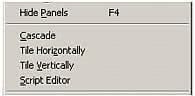
If you select a script marker in Design view for the current document and then select the Script Editor menu item, it invokes the Script Editor floating panel and displays the JavaScript code that underlies the script marker. If you select the menu item when a script marker has not been selected, it displays the blanklayer panel that contains the text (no script selected).
To add the menu item:
- Open the menus.xml file in the Configuration/Menus folder.
- locate the tag that begins
<menuitem name="Tile _Vertically" and position the cursor after the closing/>of the tag. - On a new line, insert the following:
<menuitem name="Script Editor" enabled="true" ¬command="dw.toggleFloater('scriptEditor')"¬checked="dw.getFloaterVisibility('scriptEditor')" /> - Save the file.