A simple Flash dialog box example
In this example, you use Adobe Dreamweaver to create a new command that displays a SWF file called myFlash.swf when the user clicks the command in the Commands menu. For specific information about creating commands before trying this example, see the information about commands in Extending Adobe Dreamweaver.
NOTE | This example assumes you already have a SWF file called myFlash.swf in the Configuration/Commands folder of your Adobe Dreamweaver application installation folder. To test this with your own SWF file, save the SWF file to the application Commands folder, and substitute your filename in all instances of myFlash.swf. |
In Adobe Dreamweaver, open a new basic HTML file (this will be your Command definition file). Between the opening and closing title tags, enter My Flash Movie so the head of your page reads as follows:
<!DOCTYPE HTML PUBLIC "-//W3C//DTD HTML 4.01 Transitional//EN"><html><head><title>My Flash Movie</title><meta http-equiv="Content-Type" content="text/html; charset=iso-8859-1"></head>
Now, save the file as My Flash Movie.htm in the application Configuration/Commands folder (but do not close the file yet). You save the file at this point so you can embed your Flash content with a relative path, otherwise Adobe Dreamweaver will try to use an absolute path.
Back in the HTML document, between the opening and closing body tags, add an opening and closing form tag. Then, within the form tags, use the Insert > Media > Flash menu option to add your Flash content to the Command definition file. When prompted, select the SWF file in the Commands folder, and click OK. Your Command definition file should now look like the following example (of course, the width and height attributes might differ, depending on your SWF file properties):
<!DOCTYPE HTML PUBLIC "-//W3C//DTD HTML 4.01 Transitional//EN"><html><head><title>My Flash Movie</title><meta http-equiv="Content-Type" content="text/html; charset=iso-8859-1"></head><body><body><form><object classid="clsid:D27CDB6E-AE6D-11cf-96B8-444553540000" codebase="http://download.macromedia.com/pub/shockwave/cabs/flash/swflash.cab#version=6,0,29,0" width="200" height="100"> <param name="movie" value="myFlash.swf"> <param name="quality" value="high"> <embed src="myFlash.swf" quality="high" pluginspage="http://www.macromedia.com/go/getflashplayer" type="application/x-shockwave-flash" width="200" height="100"></embed></object></form></body></html>
Save the file again. Next, exit and restart Adobe Dreamweaver. Select the Command > My Flash Movie menu option, and your Flash content appears in a Adobe Dreamweaver dialog box, as shown in the following figure:
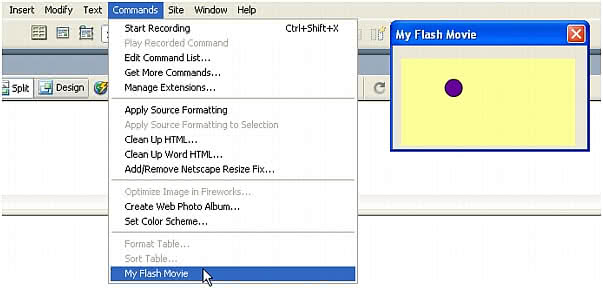
This example shows a simple implementation of Adobe Dreamweaver's Flash content support. After you are familiar with building objects and commands as well as more sophisticated forms, you can integrate Flash content into your Adobe Dreamweaver extensions for a more dynamic user experience. For more information, see Commands about writing a commandButtons() function to add buttons to the dialog box that displays your Flash content.